Understanding your Brand Dashboard
Last updated: August 4, 2026
Your Brand Dashboard is your central hub for monitoring how your brand appears across AI-powered search engines. It gives you a real-time view of your brand's visibility, sentiment, and competitive positioning - all in one place.
This guide walks you through the key sections of the dashboard so you can get the most out of your data.
Performance Summary Cards
At the top of the dashboard, you'll see a set of performance summary cards that update based on your filters. These give you a quick snapshot of your brand's health across AI results.
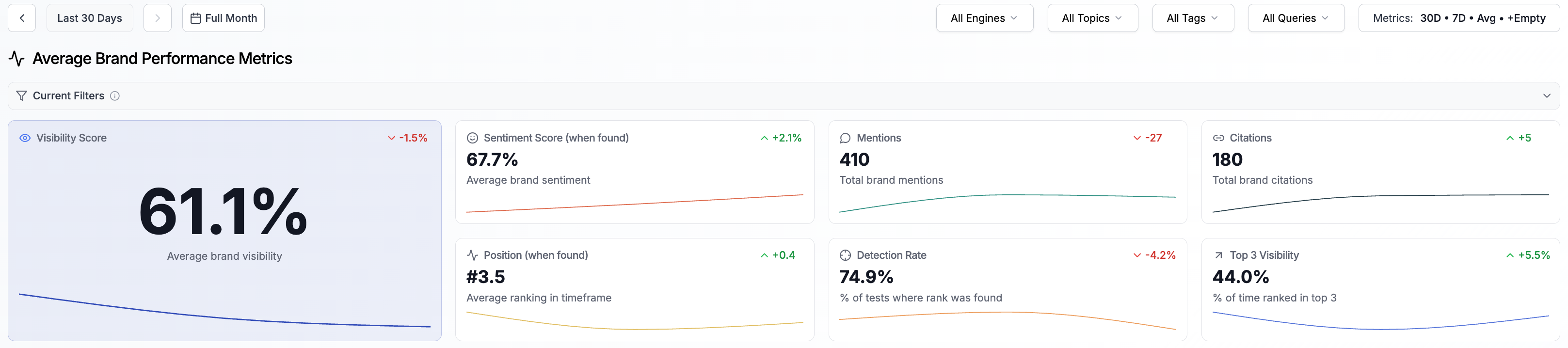
Visibility Score - Your average brand visibility across all AI results. This is the headline metric that shows how often and how prominently your brand appears overall.
Sentiment Score - How positively or negatively your brand is described in AI results. This reflects the tone and language AI engines use when referencing your brand.
Mentions - The total number of times your brand was found in AI results.
Citations - The number of times your brand was linked or referenced as a source in AI responses.
Average Position - Your average rank when your brand is mentioned in a result.
Detection Rate - The percentage of tracked runs where your brand appeared. This shows how consistently your brand is being picked up across different search terms.
Top 3 Visibility - The percentage of results where your brand ranked in the top 3 positions.
Filters
The filter bar at the top of the dashboard lets you narrow down your data to focus on what matters most. You can combine multiple filters to create specific views.
Time Range
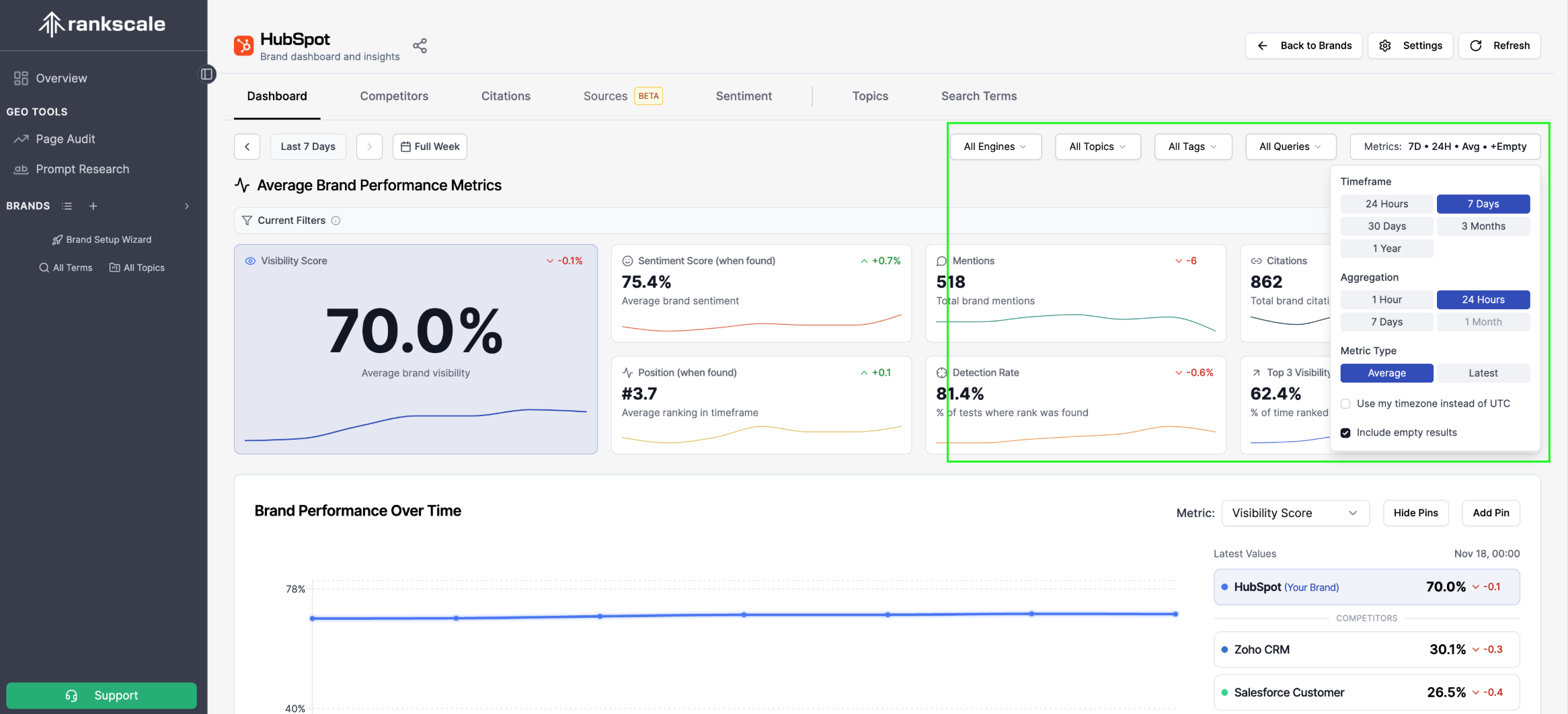
Use the date navigation on the left side (or the Metrics tab on the right side) of the filter bar to select your reporting period (e.g., Last 7 Days, Last 30 Days). You can also toggle between viewing data by Full Week or Full Month.
Dimension Filters
Use the dropdown filters to slice your data by:
All Engines - Filter by specific AI search engines (e.g., ChatGPT, Perplexity, Gemini).
All Topics - Focus on specific topic categories you created.
All Tags - Filter by custom tags you've applied to your queries.
All Queries - Drill into specific search queries.
Metrics Configuration
Click the Metrics button on the far right of the filter bar to configure how your summary cards calculate and display data:
Timeframe — Choose the time window for your metrics: 24 Hours, 7 Days, 30 Days, 3 Months, or 1 Year.
Aggregation — Set how data points are grouped: Hourly, Daily, Weekly, Monthly
Metric Type — Toggle between Average (smoothed trends) and Latest (most recent data point).
Use my timezone instead of UTC — Display timestamps in your local timezone.
Include empty results — When enabled, queries where your brand was not found are still included in calculations, giving you a more accurate picture of overall visibility.
Tip: Always include empty results to reflect all engine answers in your metrics
Brand Performance Over Time
Below the summary cards, you'll find the Brand Performance Over Time chart. This tracks your selected metric over your chosen time range, with your brand highlighted alongside your competitors.
Use the Metric dropdown above the chart to switch between metrics (Visibility Score, Mentions, Sentiment, etc.). The right-hand panel shows the latest values for your brand and each competitor, making it easy to see where you stand at a glance.
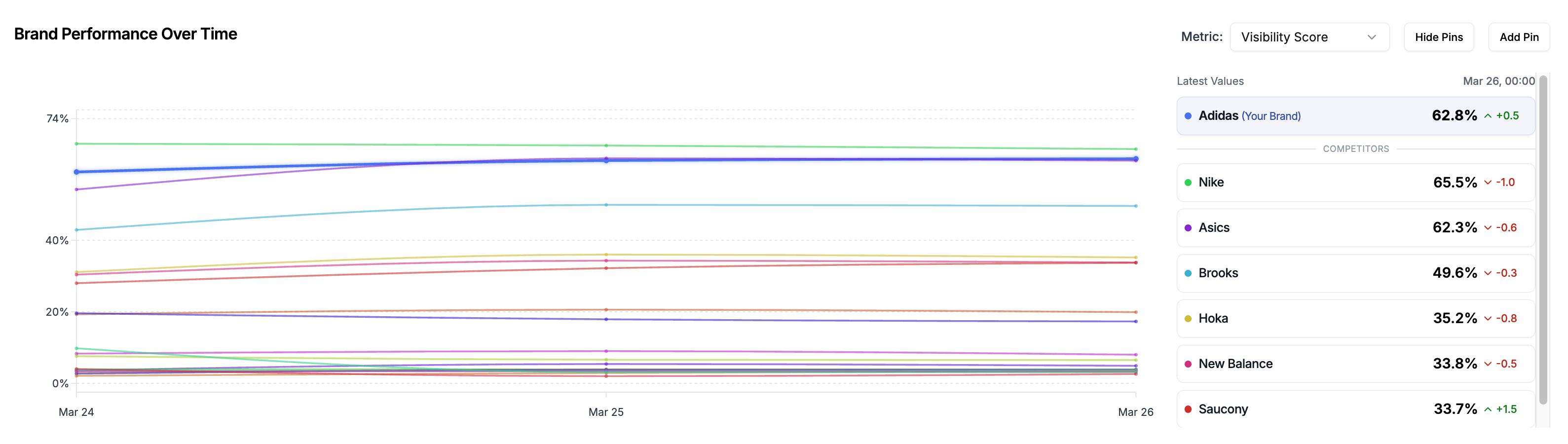
Tip: You can add pins to data points to map changes or reporting cycles