How to Create a New Brand
Last updated: April 7, 2026
This guide walks you through creating a new brand in your Rankscale workspace, which is the first step to getting insights about your AI-Visibility.
Step-by-step instructions
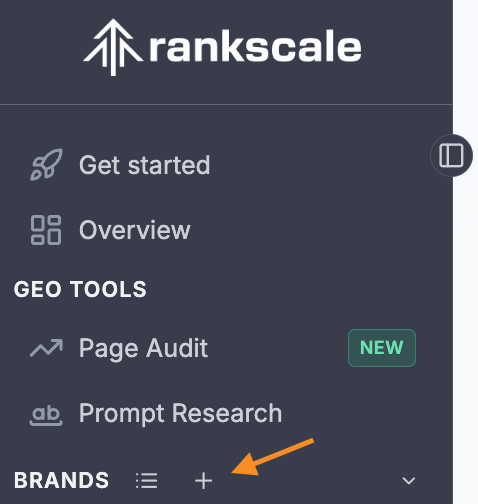
Navigate to the Brands section in your Rankscale dashboard sidebar.
Select + to Create New Brand in the top-right corner of the Brands page.
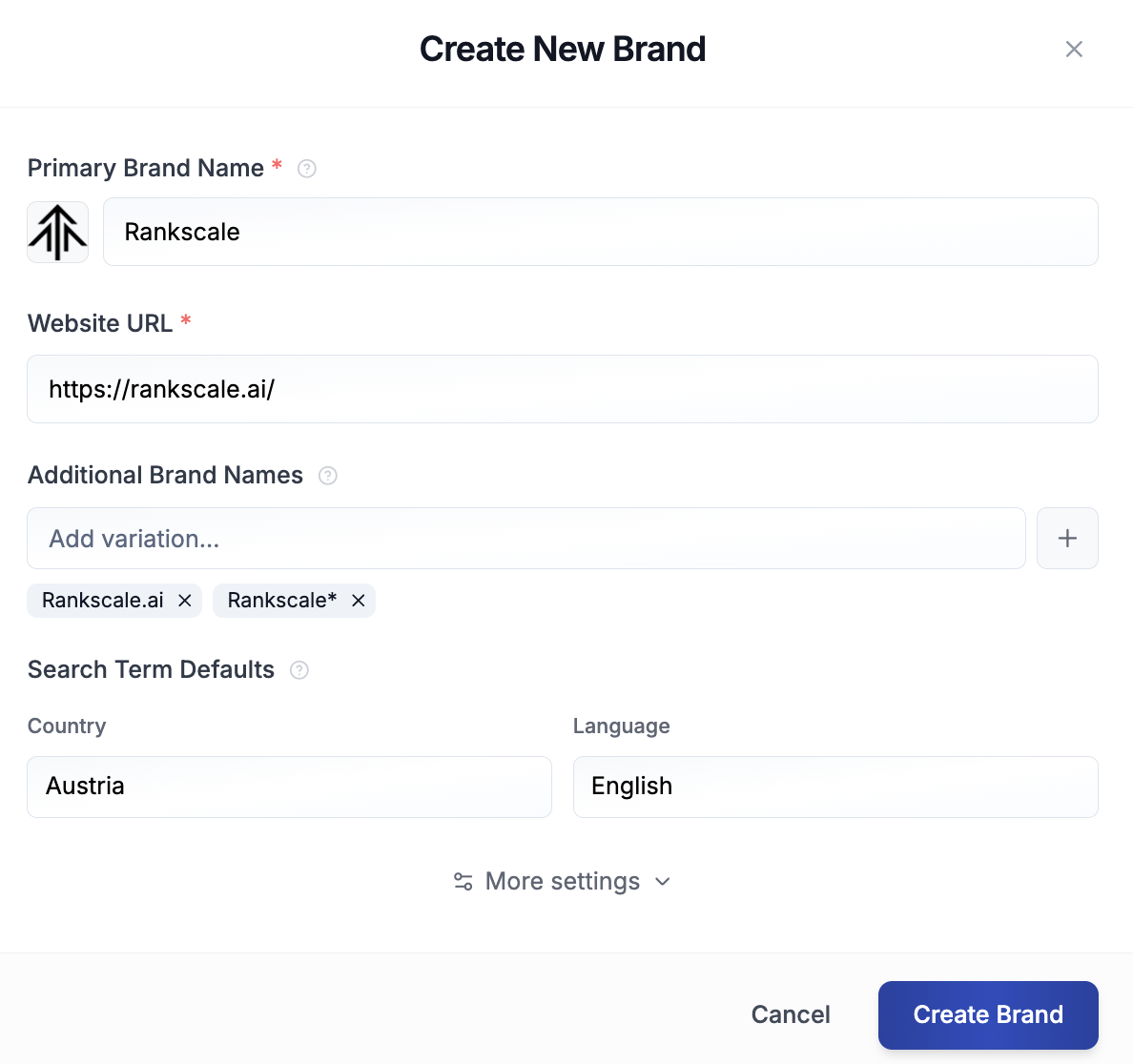
Enter the brand name in the Brand Name field. This is the display name your team sees in the dashboard - you can change the brand name later.
Enter the brand's website URL in the Website URL field. Rankscale uses this domain to check if your own content is sited.
Configure any additional brand settings as needed. These can be updated later from the brand's Settings page.
Tip: Add additional Brand Names or product names to make sure that all answers related to your brand are captured correctly. You can use a * behind your brand name to create a wildcard attribute.
Select Create Brand to save your new brand.
Verify the brand was created
After selecting Create Brand, Rankscale redirects you to the new brand's dashboard. You should see the brand name in the top navigation bar, and the brand appears in your Brands list in the sidebar. The brand status shows as "Active."