Inviting Members to your Workspace
Last updated: June 15, 2026
Add colleagues to your workspace so they can view and work with your brands. Rankscale supports unlimited workspace members.
Inviting a Member
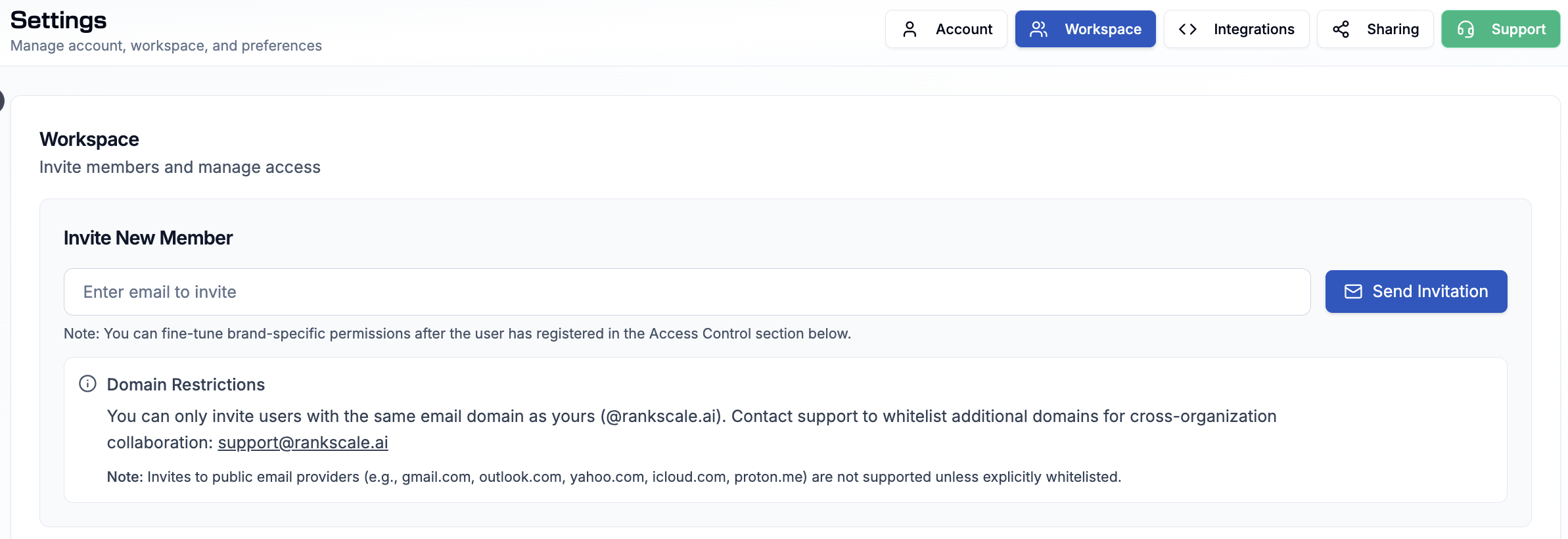
Open Settings from the bottom-left corner, then click Workspace at the top.
In the Invite New Member section, enter the person's email address.
Click Send Invitation.
The invited person receives a link to register for Rankscale. Once they complete registration, they join your workspace as a member and can access your brands.
Inviting Users from Another Domain
You can only invite users with the same email domain as yours, for example @rankscale.ai. Invites to public email providers such as Gmail, Outlook, Yahoo, iCloud, and Proton are not supported by default.
To invite users from a different domain, email support@rankscale.ai to have that domain whitelisted for your workspace. Once whitelisted, you can invite users from that domain the same way.
Managing Access
By default, all workspace members have write access to every brand. When you invite a new member, you can set their access level right away from the invite field.
Note: The access level dropdown on the invite field only appears after you enable Manage workspace write permissions in the Access Control section.
If you want to limit a member to specific brands, see 📄 Restricting brand access for team members and clientsfor the full setup.