Finding Search Terms
Last updated: April 2, 2026
Search terms are the foundation of tracking in Rankscale. Every search term is a prompt that gets sent to AI engines on your behalf - the results are what power your visibility scores, mentions, sentiment, and every other metric on your dashboard.
The more relevant your search terms, the more meaningful your data. This guide covers how to find the right terms and add them to your tracking.
What are Search Terms?
In Rankscale, "search terms" and "prompts" mean the same thing. Each search term represents a query that AI search engines (like ChatGPT, Perplexity, Gemini, etc.) will process on a recurring basis so you can monitor how your brand appears in the results.
Every search term you track consumes credits each time it runs, so choosing the right terms matters.
Finding Relevant Search Terms
There are three ways to discover and add search terms to your tracking.
Find Terms by Topic
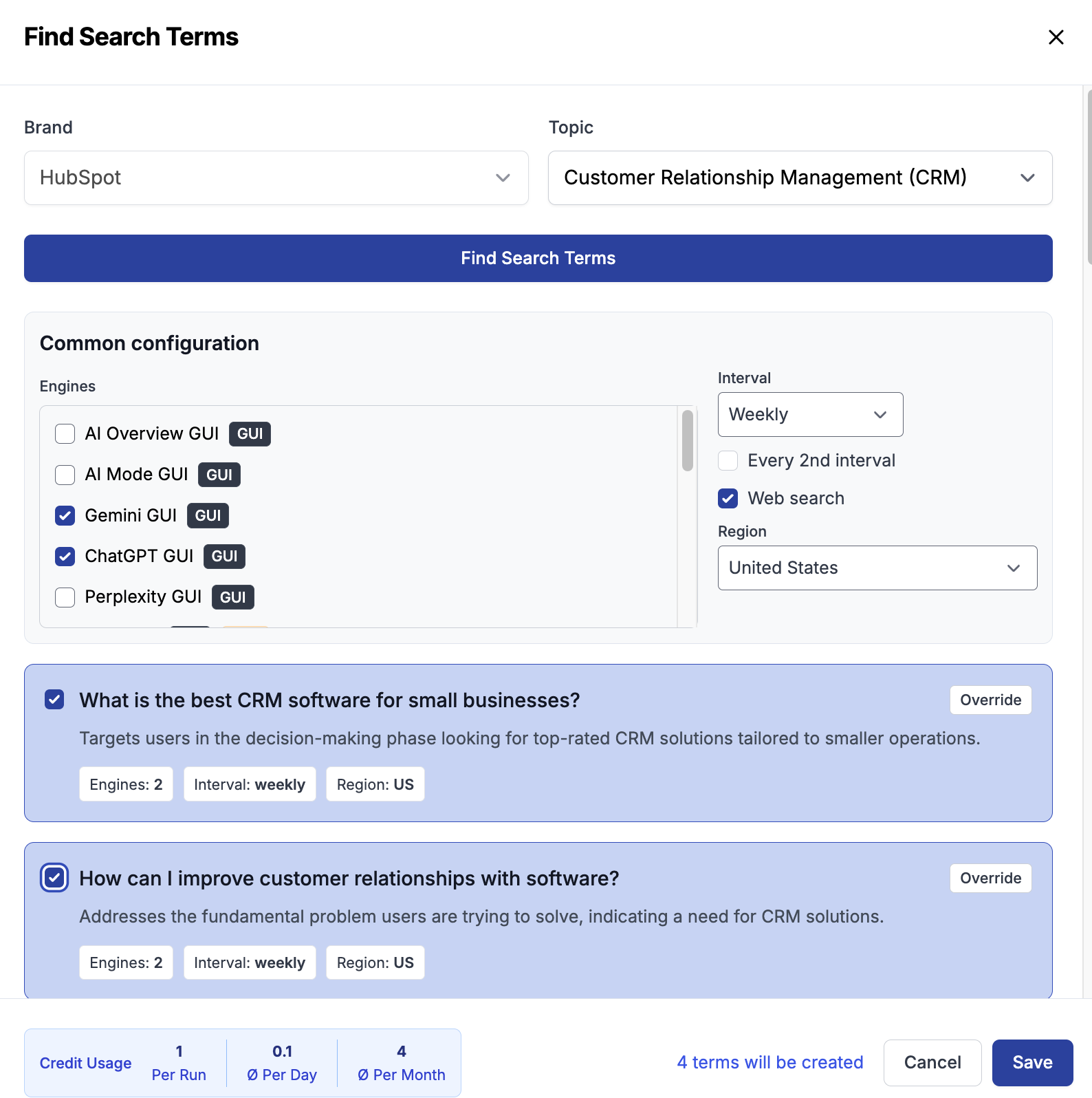
If you've already defined topics for your brand, you can use the Find Terms button within a topic to get AI-generated suggestions. Rankscale will analyze your topic and recommend relevant search terms that are likely to surface your brand or competitors.
From the Find Terms dialog, you can configure everything before adding terms to tracking:

Select your Brand and Topic.
Set a Common configuration for all suggested terms - choose which AI engines to track on, the tracking interval, and the target region.
Review the suggested search terms. Each one includes a description of the intent it targets.
Use the Override button on any individual term to customize its engines, interval, or region separately from the common configuration.
The Credit Usage bar at the bottom shows you how many credits the selected configuration will consume per run, per day, and per month.
Check the terms you want and click Save to add them directly to tracking.
Prompt Research
For a more in-depth approach, use the Prompt Research module. This tool helps you identify the strongest prompts for a specific segment of your market.
Here's how it works:
Go to Prompt Research — The module suggests the strongest prompts for your segment. If you're unsure which segment to use, click "Find segments" to get started.
Configure your simulation — Enter your segment, select a region, target country, and language.
Run research — Click "Run Research" to generate an overview of which prompts are most valuable to track.
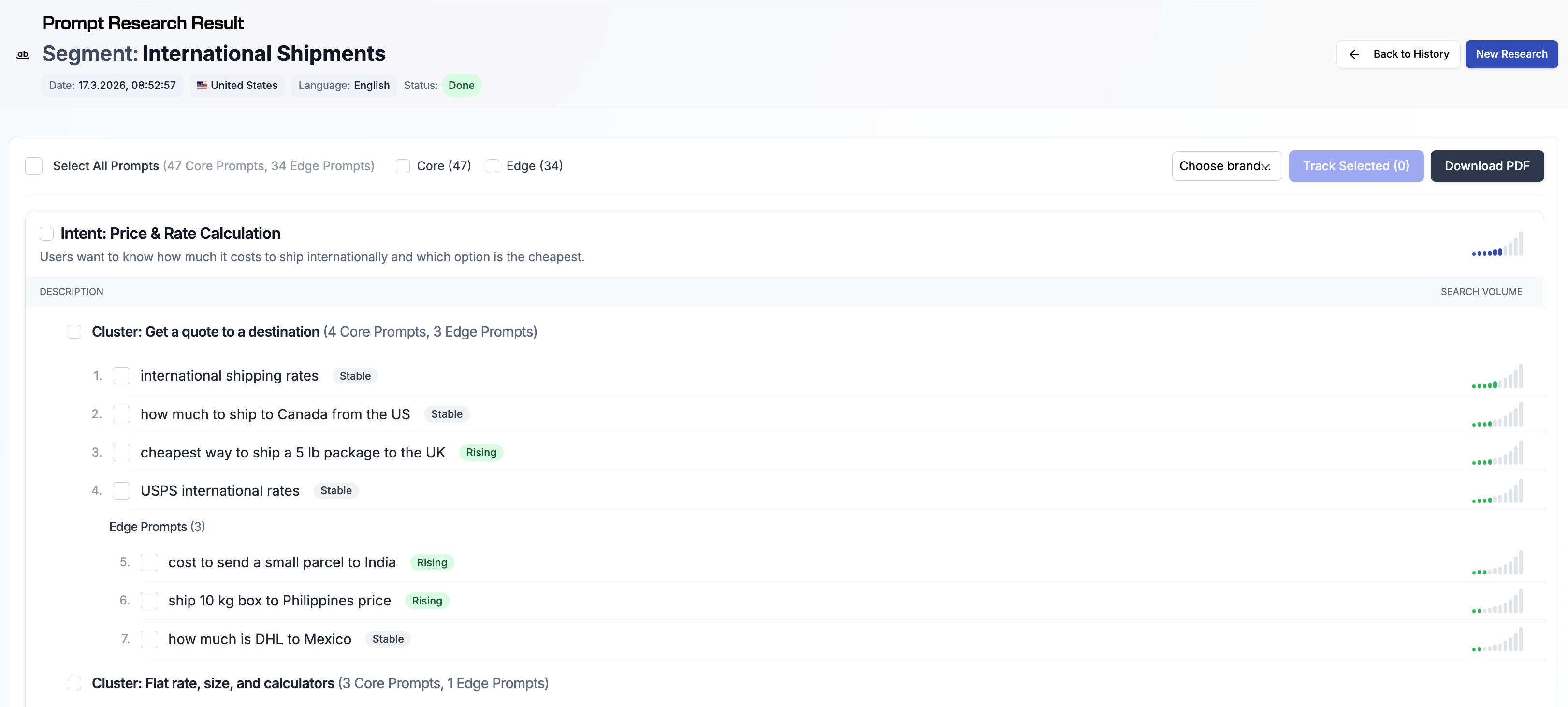
Select your prompts — Review the results, choose your desired prompts, select a brand, and add them directly to tracking.
Prompt Research goes beyond simple keyword suggestions. It organizes results by intent (e.g., "Price & Rate Calculation") and groups prompts into clusters of related queries. Each prompt is categorized as either a Core Prompt (high relevance) or an Edge Prompt (niche or emerging), and tagged with a trend indicator: Stable, Rising, or Falling. A simulated search volume bar shows the relative relevance of each prompt, helping you prioritize the terms that matter most.
You can select individual prompts or entire clusters, choose a brand, and click Track Selected to add them to your tracking. You can also Download PDF to save the full research results for reference.
Adding Search Terms Manually
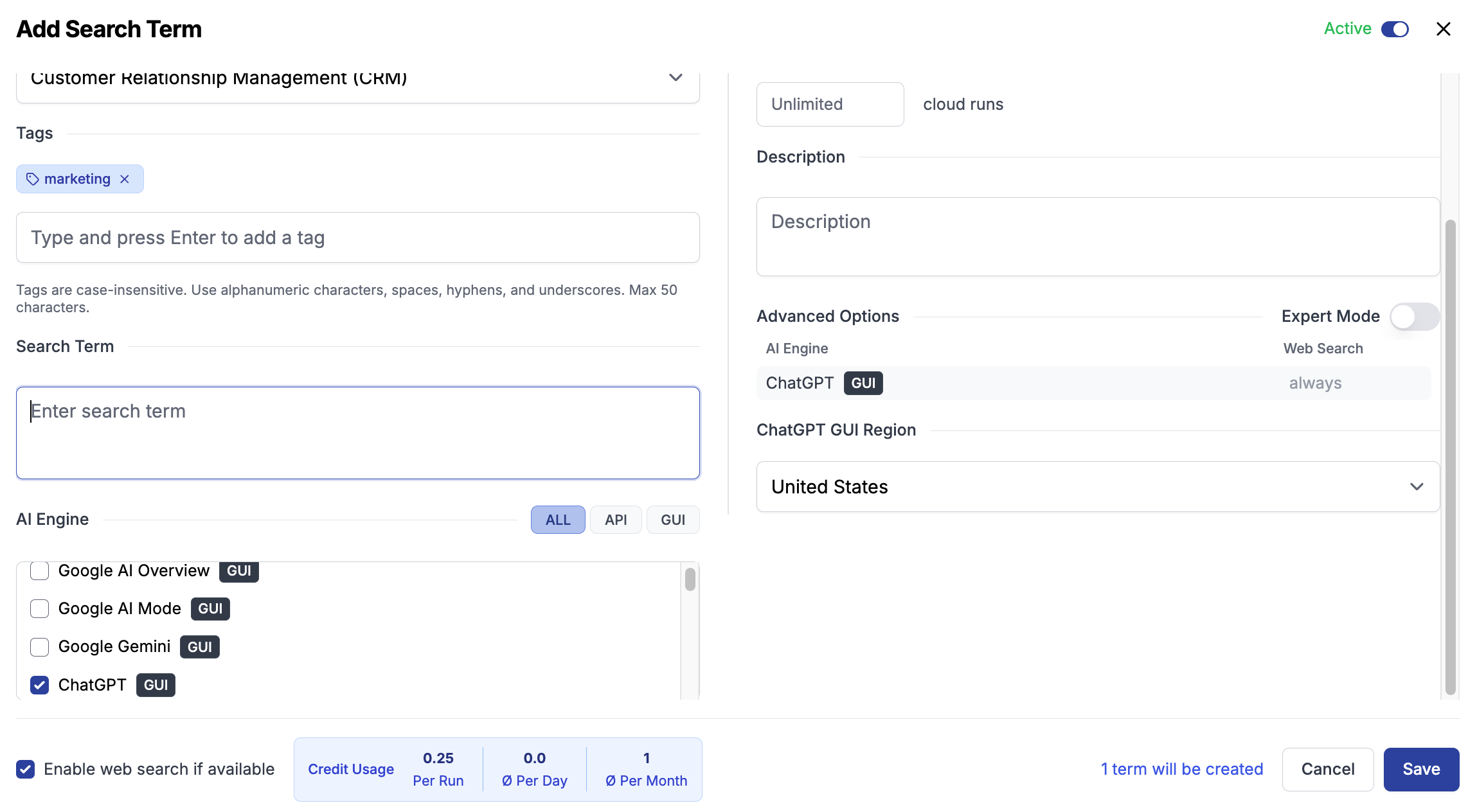
You can also add search terms one at a time through the Add Search Term interface. This gives you full control over every detail:
Topic — Assign the term to a topic.
Tags — Add tags to organize and filter your terms (e.g., "marketing", "competitor"). Tags are case-insensitive and support alphanumeric characters, spaces, hyphens, and underscores (max 50 characters).
Search Term — Enter the prompt text.
AI Engine — Select one or more engines to track on. Filter by ALL, API, or GUI.
Description — Add an optional description for context.
Advanced Options — Configure web search behavior and region per engine. Toggle Expert Mode for additional settings.
Credit Usage — Review the credit cost before saving.
Click Save to add the term to your tracking.
Bulk Add via CSV Upload
If you have a large number of terms to add, you can upload a CSV file with multiple search terms at once.
Tip: If any of your prompts contain commas, wrap them in double quotes in your CSV to avoid parsing issues.
Multi-Engine Tracking
When you select multiple AI engines for a search term, Rankscale creates a separate tracking entry for each engine. This is by design — each engine returns different results and consumes its own credits. This also means you can view each result individually per engine, giving you a clear picture of how your brand performs on each platform.
Keep this in mind when planning your tracking budget.
Tracking Intervals
You can configure each search term to run at one of three intervals: hourly, daily, or weekly. Automated runs happen at your configured interval, and you can also trigger a manual run at any time.
Exporting Search Terms
You can export your search term data as a CSV or to Google Sheets for reporting or further analysis.
Tip: You can use CSV export to bulk-update your search terms. Export your current terms, make changes to the CSV (such as adding tags or updating configurations), and re-import the updated file to apply changes in bulk.