Fixing Incorrect Brand Matches
Last updated: June 15, 2026
Your brand data can include mentions or citations that do not belong to your brand, or miss ones that do. This article shows you how to detect false positives and negatives, and correct these matches so your metrics stay accurate.
Run this analysis whenever your brand data looks off, for example after you add a new brand name variation to your additional names list, or when you notice mentions and citations that do not match your brand.
Detect and Fix False Positives and Negatives
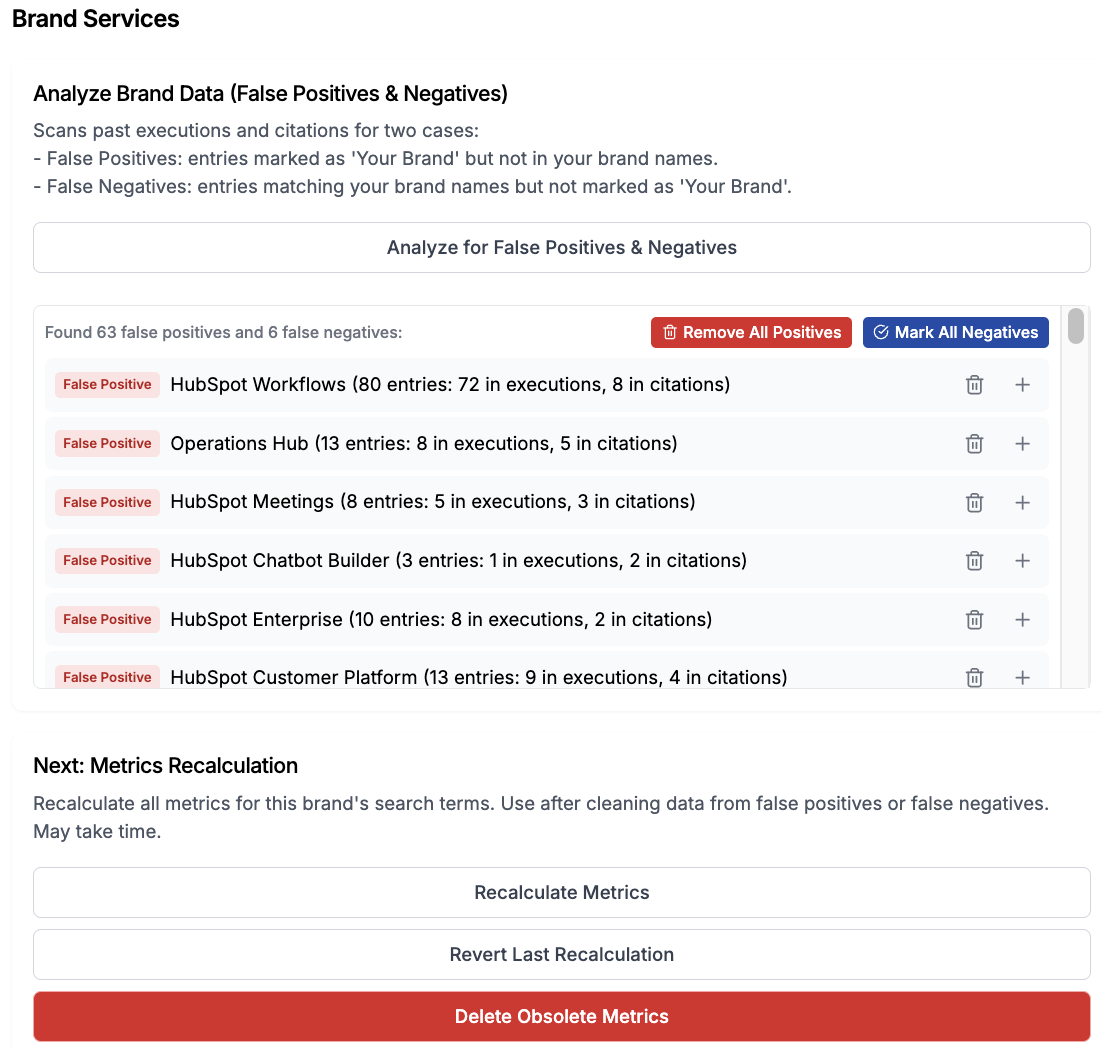
False Positives are entries marked as "Your Brand" but not actually matching your brand names. The system matched something it should not have.
False Negatives are entries that match your brand names but were not marked as "Your Brand". The system missed a legitimate match.
To analyze your brand data:
Open Brand Settings (cogwheel icon, top right).
Click Open Services at the top of the settings screen.
In the Brand Services panel, click Analyze Brand Data (False Positives & Negatives).
Wait for the analysis to complete. It scans past executions and citations for both cases.
Review the results and remove any incorrectly matched brands.
Recalculate your Metrics
After removing false positives or false negatives, recalculate your metrics so the changes are reflected across your dashboard.
In the Brand Services panel, click Recalculate Metrics.
Wait for the recalculation to finish. This may take some time depending on the amount of data.
Check your dashboard to verify the data looks correct.
If something does not look right after recalculation, click Revert Last Recalculation to undo the changes.
Warning: The Delete Obsolete Metrics option permanently removes old metric data. Only use this if you are certain the data is no longer needed.