Managing Brand and Product Names
Last updated: June 15, 2026
This article covers how to review and update your brand names, brand name variations, and product names, and how to use Brand Services to detect and fix false positives and false negatives in your brand data.
Open your Brand Settings
Navigate to your brand dashboard.
Click the cogwheel icon in the top right to open Brand Settings.
Here you can see and edit your brand names, brand name variations, and product names.
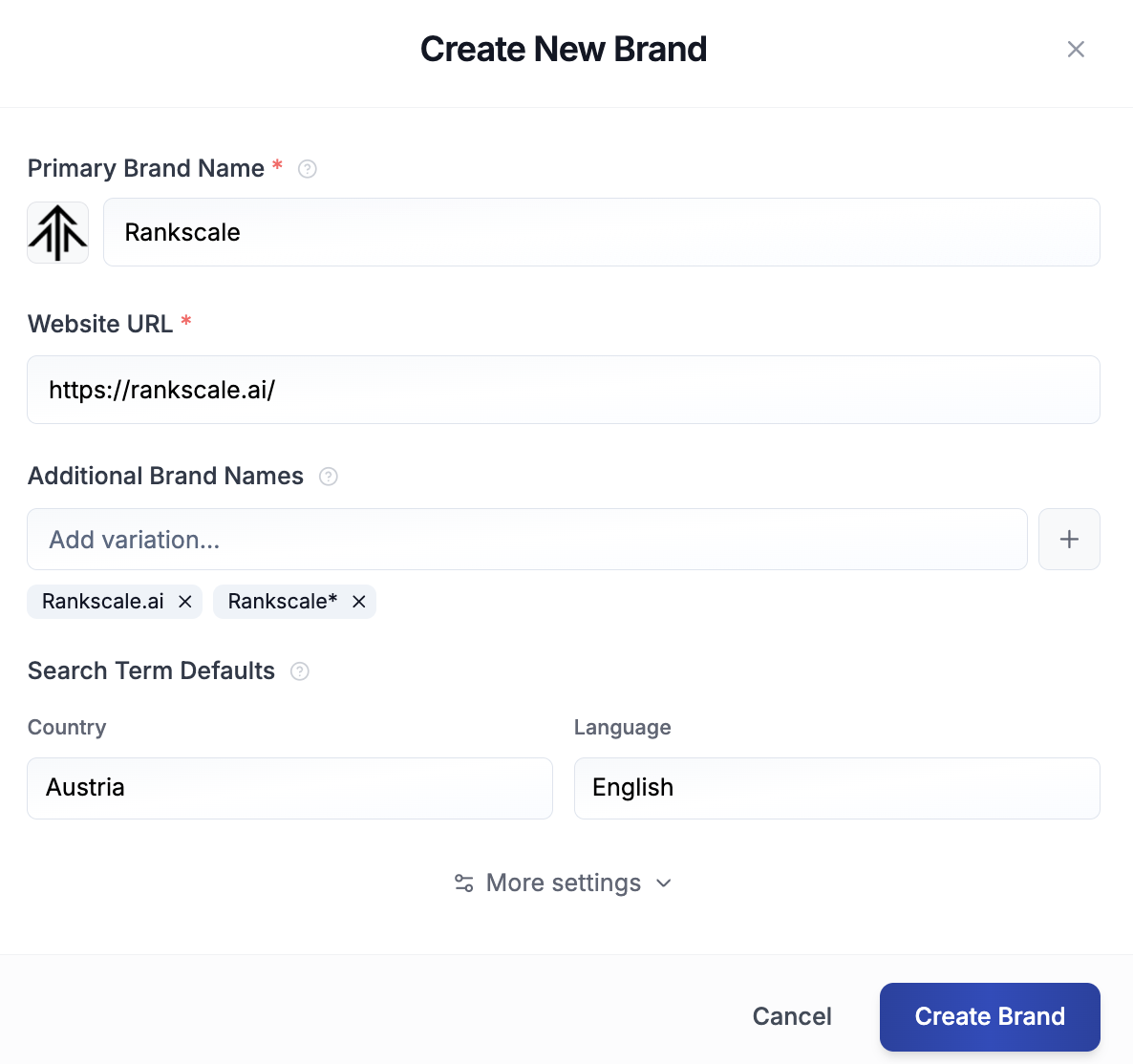
Brand Names and Variations
Your brand name is the primary name RankScale uses to detect mentions and citations across AI engines. Brand name variations let you add alternative spellings, abbreviations, or related names that should also count as your brand.
Variations support wildcards. For example, adding "breeze*" would match "Breeze", "BreezeAI", "BreezeCRM", and any other term starting with "breeze".
Tip: If your data looks off, check your brand name variations first. Removing overly broad or generic entries is often the quickest fix.
Product Names
Product names help RankScale identify mentions of your specific products in AI engine responses, separate from your brand name itself. You can add, edit, or remove product names in the same brand settings screen.
Like brand name variations, product names that are too generic can trigger false matches. Keep them specific to avoid picking up unrelated mentions.
Fixing Incorrect Brand Matches
If you have changed your brand names or added new variations after data was already collected, you may need to re-scan and correct your past mentions and citations. See 📄 Fixing Incorrect Brand Matchesto detect false positives and negatives and recalculate your metrics.