Managing your Search Terms
Last updated: March 31, 2026
Once you have added search terms to a brand, you can edit, organize, and update them at any time. This article covers how to edit prompts for individual or all AI engines, add search terms in bulk, and use CSV export and import to manage your search terms at scale.
Before You Start
Make sure you have at least one brand set up with search terms already added. If you have not added search terms yet, see 📄 Finding Search Termsto get started.
Edit a Prompt for a Single AI Engine
Each search term can have a unique prompt per AI engine. To customize the prompt for one specific engine:
Navigate to your brand and open the Search Terms tab.
Find the search term you want to edit and click on it to open its detail view.
Locate the AI engine you want to adjust (e.g., ChatGPT, Perplexity, Gemini).
Click the Edit icon next to that engine's prompt.
Update the prompt text as needed.
Click Save to apply your changes.
Your change only affects the selected engine. All other engines for that search term remain unchanged.

Edit Multiple Search Terms or AI Engines
If you want to apply the same prompt update across every AI engine for a given search term:
Navigate to your brand and open the Search Terms tab.
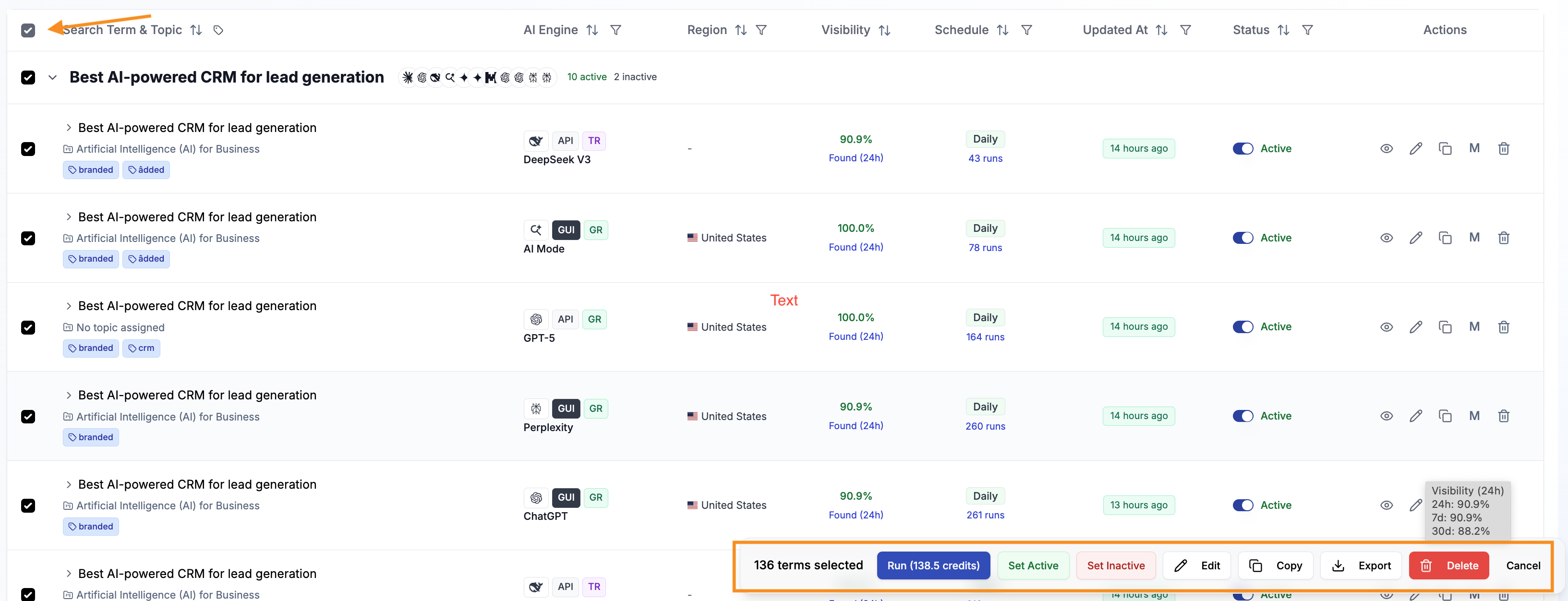
Click the checkbox on all search terms you want to edit
Click the Edit option in the bottom to open the shared prompt editor.
Capture your updates.
Tip: Using the Bulk editor in the top changes all settings equally, cancel your changes and start over if you have unwanted changes
Click Save to apply your changes across all engines.
This overwrites any engine-specific customizations you may have made previously.
Add Search Terms in Bulk
When you need to add a larger number of search terms at once, the bulk add feature saves time compared to adding them one by one.
Navigate to your brand and open the Search Terms tab.
Click Bulk Add.
Enter your search terms — you can type or paste multiple terms, with each term on a new line.
Configure any shared settings (such as tags or engine selection) that should apply to all the new terms.
Click Add to save all the search terms at once.
Each term is created as a separate search term within the brand. You can edit individual prompts or tags afterward.
Export and Import Search Terms via CSV
You can export your current search terms to a CSV file and import a CSV to add or update search terms. This is useful for reviewing your setup in a spreadsheet, sharing it with colleagues, or preparing a large set of updates.
To export, navigate to the Search Terms tab and click Export CSV. This downloads a file containing all your current search terms and their associated data.
To import, click Import CSV and select your file. Review the import preview and confirm to apply.