AI Assistants (MCP) BETA
Last updated: August 6, 2026
Connect Claude, ChatGPT, Cursor, and other AI assistants to your Rankscale data and ask about your brand in plain language
Ask your AI assistant about your brand
Connect Rankscale to Claude, ChatGPT, Cursor, and other AI assistants, then ask about your brand's AI-search visibility in plain language — no dashboards, no exports. Your assistant reads your live Rankscale data and answers right in the chat.
The connection is read-only by default. When you connect you can optionally allow your assistant to help you set things up too — creating and updating search terms, topics, and dashboard views. You choose exactly which permissions to grant, and you can revoke them at any time.
Write access is always opt-in and never destructive: new search terms are created paused, so nothing runs or spends credits until you activate it yourself in Rankscale. Your assistant can't run tracking, spend credits, or change your brand and competitor settings.
What you can ask
A few examples once you're connected:
“How is my brand trending across AI engines this month?”
“Which competitors gained the most visibility in the last 30 days?”
“Summarise sentiment for my brand and what's driving it.”
“What are my top citation sources right now?”
“List my search terms and flag the ones that are underperforming.”
“Compare my shopping visibility this week versus last week.”
Tip: Answers come from the same data as your dashboard, so the numbers your assistant gives you match what you see in Rankscale.
What it can set up for you
If you grant the optional “Create and update your search terms, topics, and dashboards” permission, you can also ask your assistant to make changes — for example:
“Create search terms for these five product pages — leave them paused.”
“Rename this search term and update its tags.”
“Add a topic called ‘Enterprise’ so I can group terms under it.”
“Save a dashboard view filtered to my top competitors and make it my default.”
You stay in control
New search terms are created inactive — nothing runs or spends credits until you activate them in Rankscale. Leave the write permission unchecked when you connect to keep the connection fully read-only.
Before you connect
A paid Rankscale plan — the integration is available on paid plans.
Your Rankscale login — you sign in with your normal account. There is no API key to copy, paste, or manage.
An assistant that supports connectors — Claude (desktop or claude.ai), ChatGPT, Cursor, OpenAI Codex, and most MCP-compatible apps.
The connection link
Every client uses the same single URL. Paste it wherever your assistant asks for a “custom connector” or “MCP server”:
Rankscale MCP server URL
https://mcp.rankscale.ai/mcpWhen you connect, a Rankscale sign-in window opens. Log in, choose which permissions to grant — reading is always included; creating and updating is an optional toggle you can leave off — and click Allow.
Connect Claude
Works in both the Claude desktop app and claude.ai:
1. Open Customize in the Claude sidebar.
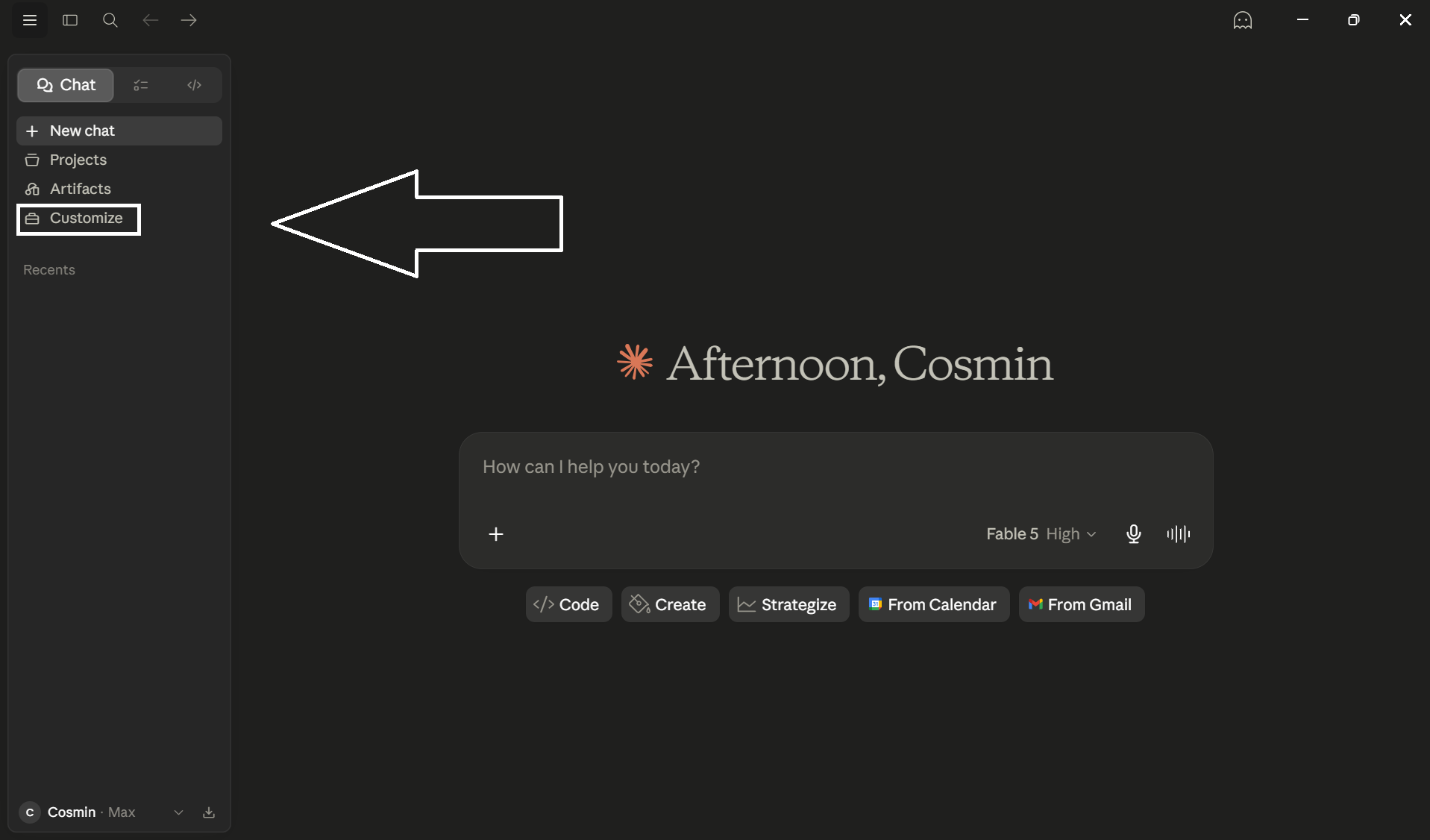
Claude sidebar → Customize
2. Open the Connectors tab.
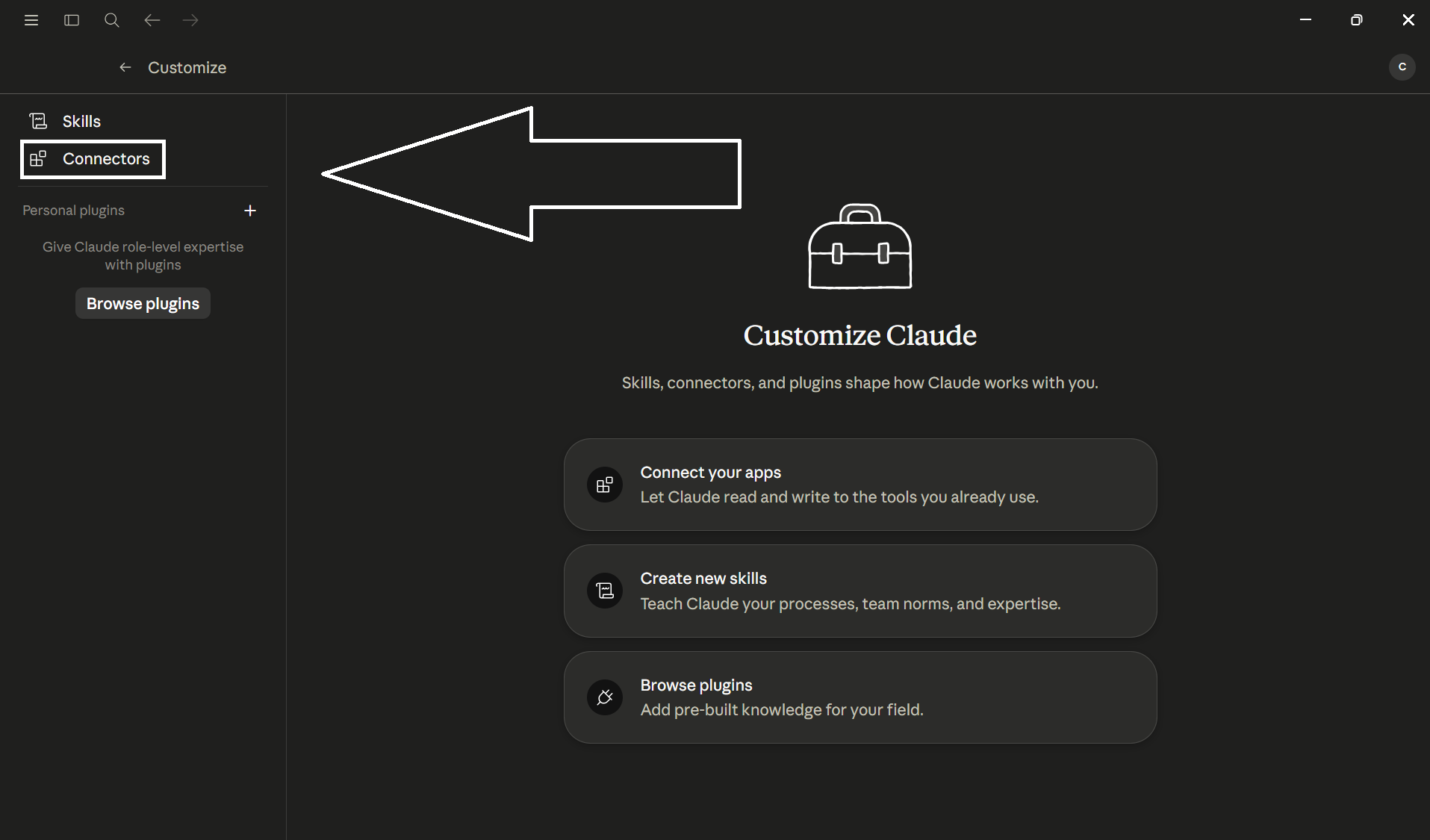
Customize → Connectors
3. Click the + Add connector button at the top of the Connectors list.
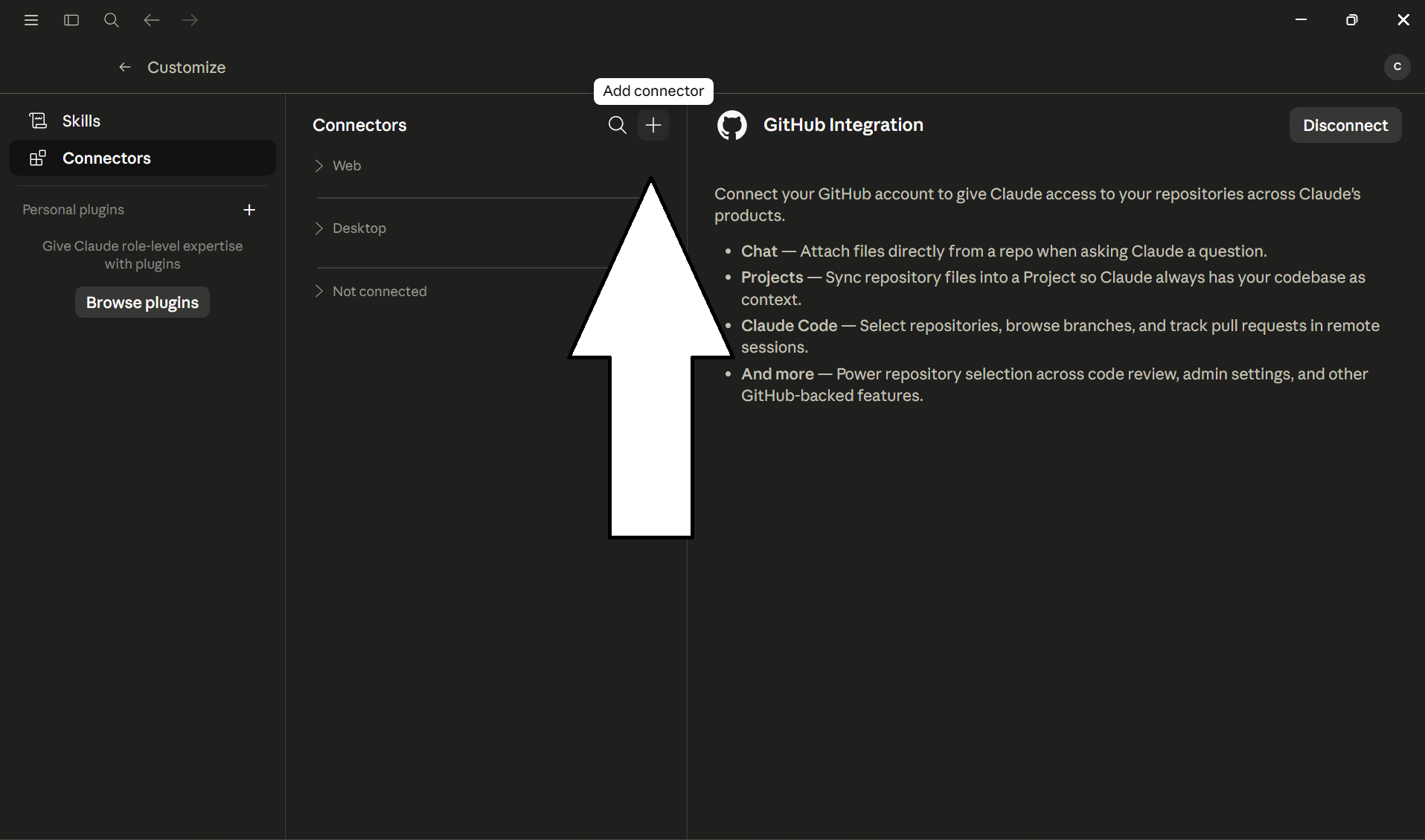
Connectors → + Add connector
4. Give it a name (e.g. Rankscale), paste the URL https://mcp.rankscale.ai/mcp, and click Add.
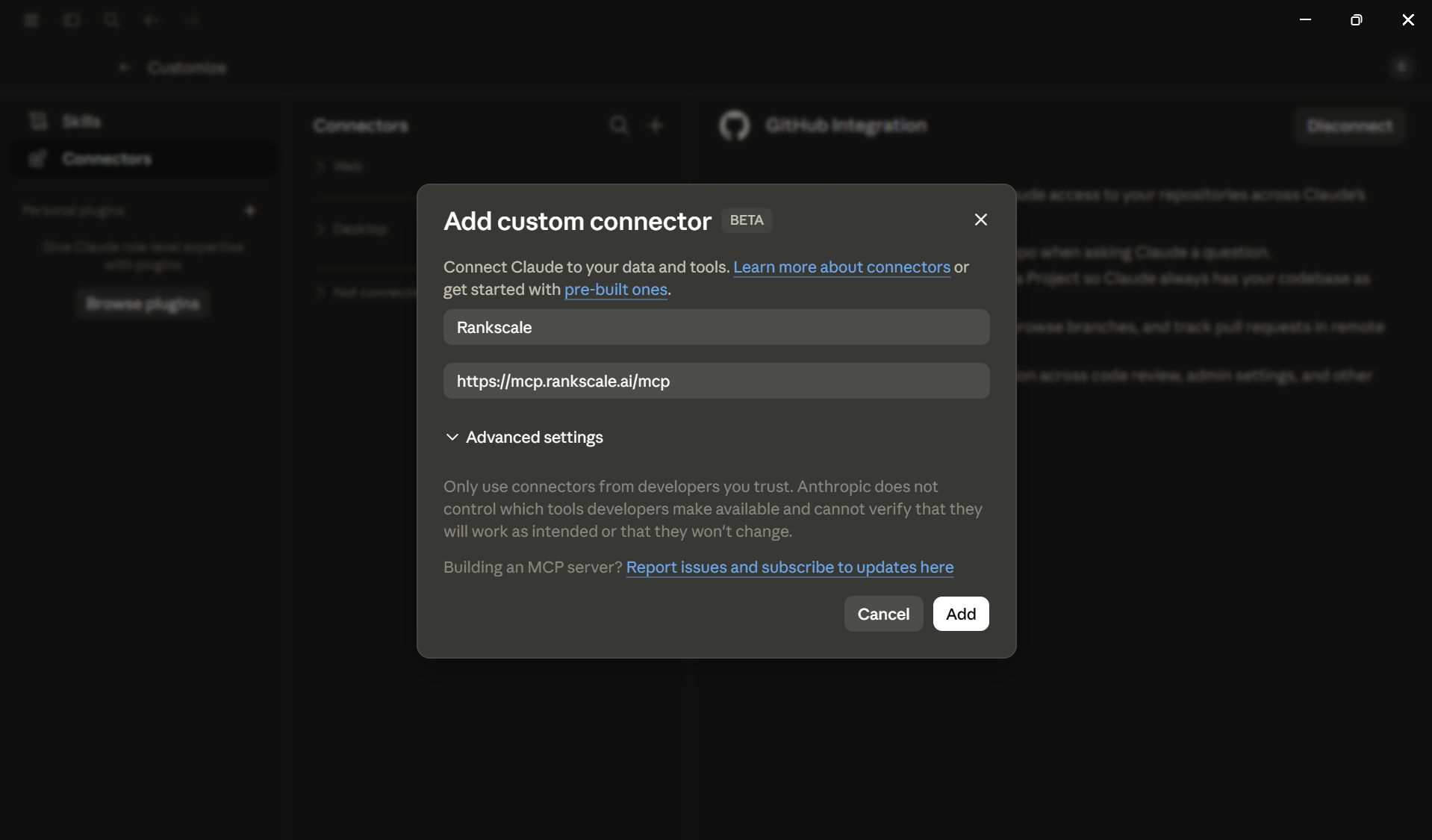
Name it, paste the URL, and click Add
5. Claude opens a Rankscale sign-in window — sign in and click Allow.
6. Start a new chat and ask about your brand — Claude uses the Rankscale tools automatically.
Connect ChatGPT
Requires a ChatGPT plan that supports connectors / developer mode:
Open ChatGPT's Settings → Connectors (or “Apps & Connectors”).
Add a new connector and choose to connect an MCP server.
Paste the Rankscale MCP server URL and confirm.
Sign in to Rankscale and click Allow.
Enable the Rankscale connector in a chat, then ask your question.
Connect Cursor, Codex & other apps
Any MCP-compatible client works. Most use a small config file — add Rankscale as a remote MCP server with the same URL:
mcp.json
{
  "mcpServers": {
    "rankscale": {
      "url": "https://mcp.rankscale.ai/mcp"
    }
  }
}
The first time the client connects, it opens the same Rankscale sign-in and Allow step.
Manage your connections
You can see every connected assistant and disconnect any of them at any time on the AI assistant connections page. Revoking a connection immediately stops that assistant from accessing your data.
Good to know: One URL works across every assistant and there's no API key to manage. Access is read-only unless you opt in to write permissions when you connect, and you can revoke any connection from the AI assistant connections page (linked above) whenever you like.