Understanding Topics
Last updated: April 2, 2026
Topics are categories that group your search terms by theme or business area. They help you organize your tracking and analyze visibility performance by subject, rather than looking at all search terms as one flat list.
How Topics Work
Each topic acts as a folder for a group of related search terms. When you create or add a search term, you assign it to a topic. That search term then contributes its visibility data to the topic's overall performance metrics.
Topics appear in several places across your brand dashboard:
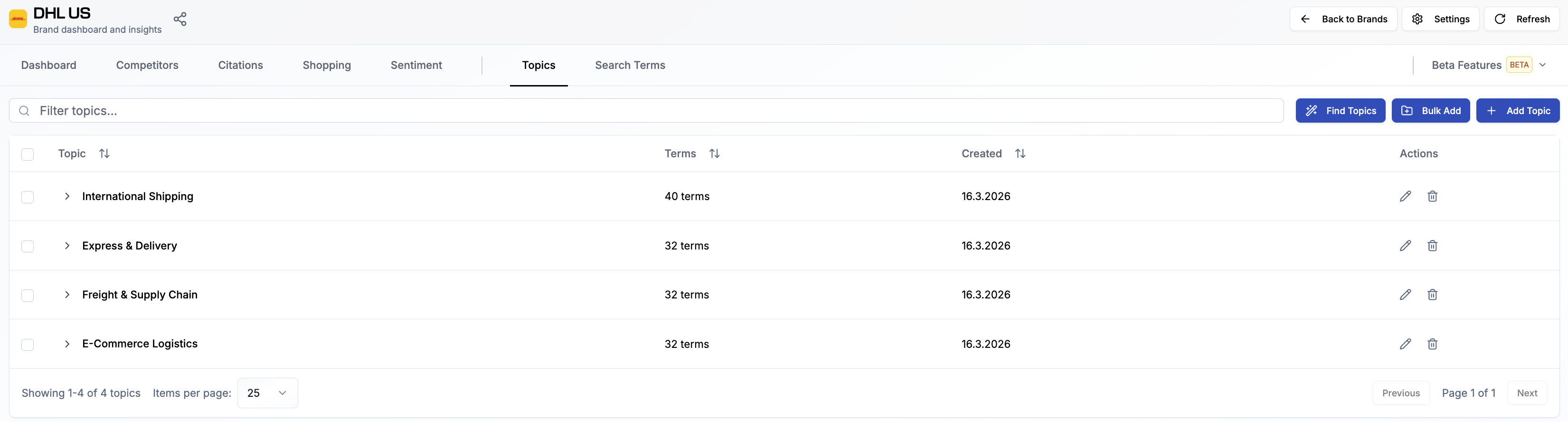
The Topics tab shows all your topics with the number of search terms in each
The Dashboard overview includes topic-level performance so you can compare across categories
Filters throughout the dashboard let you narrow your view to a specific topic
Every search term belongs to one topic. If you need to reorganize later, you can reassign search terms to a different topic at any time.
Note: You can also create search terms without topics.
Tip: You can use tags to add multiple properties to further organize your search terms beyond topics
Creating Topics
There are three ways to add topics to a brand:
Manually - Click + Add Topic in the Topics tab and enter a name. This is useful when you already know which categories you want to track.
In bulk - Click Bulk Add to add multiple topics at once. Enter one topic name per line.
Using Find Topics - Let Rankscale suggest topics automatically based on a Page Audit analysis of your website. This is the fastest way to get started, especially for a new brand. See the section below for details.
Using Find Topics
The Find Topics feature analyzes your website content and suggests relevant topic categories automatically. It uses the results of a Page Audit to identify the main themes and service areas covered on your site.
To use Find Topics:
Open your brand and go to the Topics tab.
Click Find Topics.
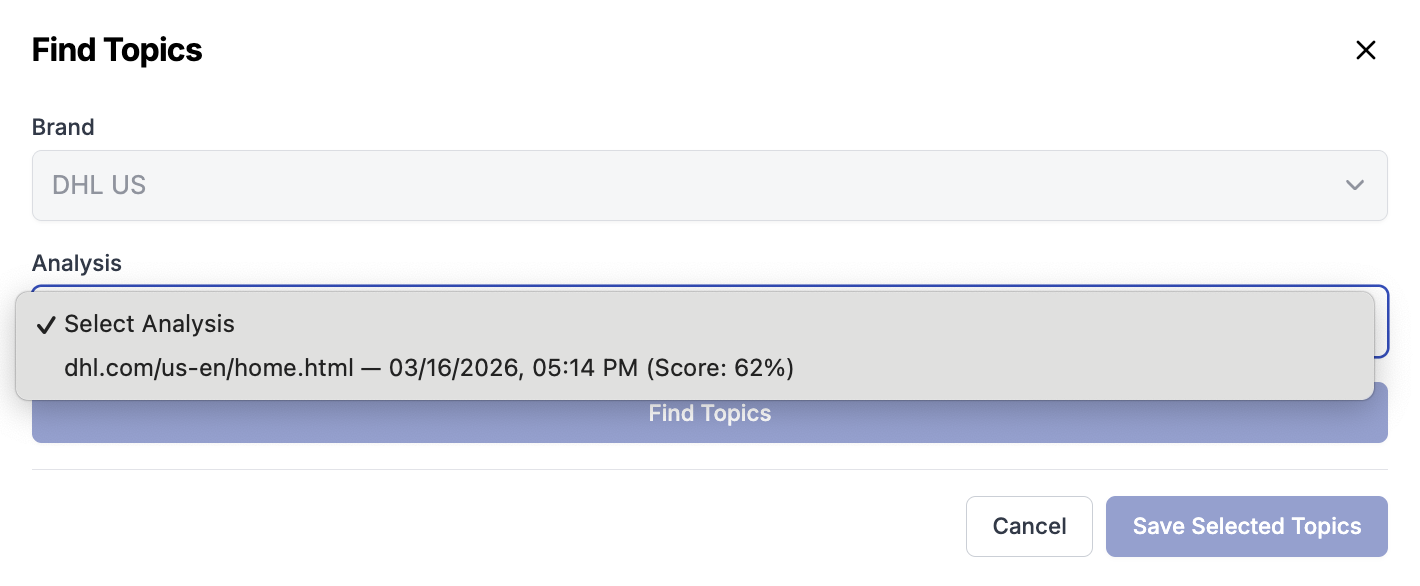
In the dialog, confirm the correct brand is selected.
Under Analysis, select a completed Page Audit from the dropdown. The dropdown shows your available audits with the URL, date, and score.
Click Find Topics to start the analysis.
Review the suggested topics. Select the ones you want to keep and deselect any that are not relevant.
Click Save Selected Topics to add them to your brand.
After saving, your new topics appear in the Topics tab. You can then add search terms to each topic manually or use the Find Terms feature to generate search term suggestions within each topic.
Tip: You need at least one completed Page Audit before you can use Find Topics. If the Analysis dropdown is empty, run a Page Audit for your brand first.
Editing and Deleting Topics
To rename a topic, click the edit icon next to it in the Topics tab. To delete a topic, click the delete icon. Deleting a topic does not delete the search terms inside it, but those search terms will need to be reassigned to another topic.
Tips for Organizing Your Topics
Align topics with your business structure. If your company offers distinct services or product lines, create a topic for each one. This makes it easy to report on visibility per business area.
Keep the number manageable. Aim for 3 to 10 topics per brand. Too many small topics make comparison harder, too few broad topics hide useful patterns.
Review and adjust after your first tracking cycle. Once you have data, you may find that some topics should be split, merged, or renamed to better reflect the queries inside them.